.svg)

Get started Alarmy
by scanning the QR code
by scanning the QR code

%201.svg)
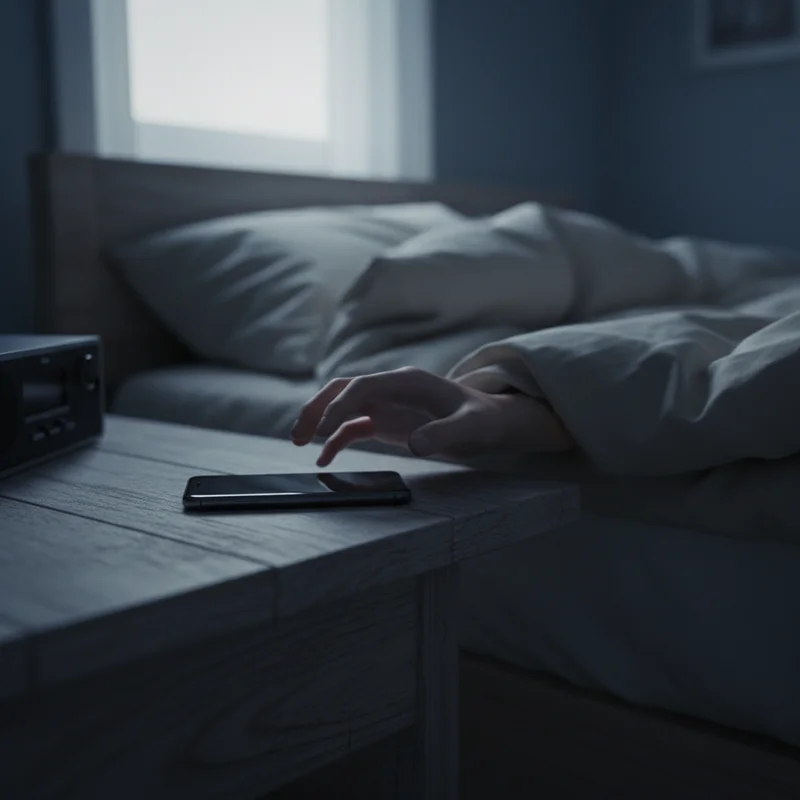
iPhone alarms fail for a handful of predictable reasons. Understanding the root cause saves you from toggling every setting on your phone.
Volume confusion. iPhones separate media volume from ringer/alarm volume. You can blast a YouTube video at full volume while your alarm slider sits near zero. Most missed alarms trace back to this single mixup.
Attention Aware Features. Face ID iPhones ship with a feature that detects when you're looking at the screen — and quietly lowers the alarm volume. Apple has acknowledged this causes silent alarm behavior.
Focus Mode interference. Do Not Disturb won't block alarms on its own. But Sleep Mode can swap your alarm tone for a softer wake-up sound, and certain Focus schedules create unexpected interactions with the Clock app.
Bluetooth routing. If your iPhone is paired with AirPods, a speaker, or a car stereo, your alarm audio may route to a device you can't hear from bed.
iOS bugs. Apple's alarm system has shipped with confirmed bugs in iOS 17, iOS 18, and during Daylight Saving transitions. Sometimes the only fix is an update or restart.
The sections below walk through each cause with step-by-step fixes.
Short on time? Run through these six checks:
If that doesn't help, keep reading for the full walkthrough.

This is the fix most people don't know about — and it's the one competitors like Asurion and Popular Science highlight as the top solution.
If you own an iPhone with Face ID, your phone uses the TrueDepth camera to detect whether you're looking at it. When it senses your gaze, iOS automatically lowers the alarm volume. The intent is helpful: reduce volume when you're already awake and staring at the phone. The reality? Many people glance at their phone half-asleep, the volume drops, and they fall back to sleep thinking the alarm never fired.
Apple acknowledged this as a cause of "silent alarms" in a support document.
That's it. One toggle. If your alarm has been mysteriously quiet, this is likely the reason.
This remains the most common cause of missed alarms. On an iPhone, media volume and alarm volume are completely separate. You might have Spotify at full blast while your ringer/alarm slider sits near zero.
The physical silent switch adds another wrinkle. Apple says alarms should still ring in silent mode — and technically, they do. But if the volume slider is already low, "ringing" means a faint buzz you'll sleep straight through.
Pro tip: Keep the slider above 50% at all times. Even with silent mode on, a high slider ensures audible alarms. If default tones still aren't cutting it, loud alarm sounds designed for heavy sleepers can make a real difference.

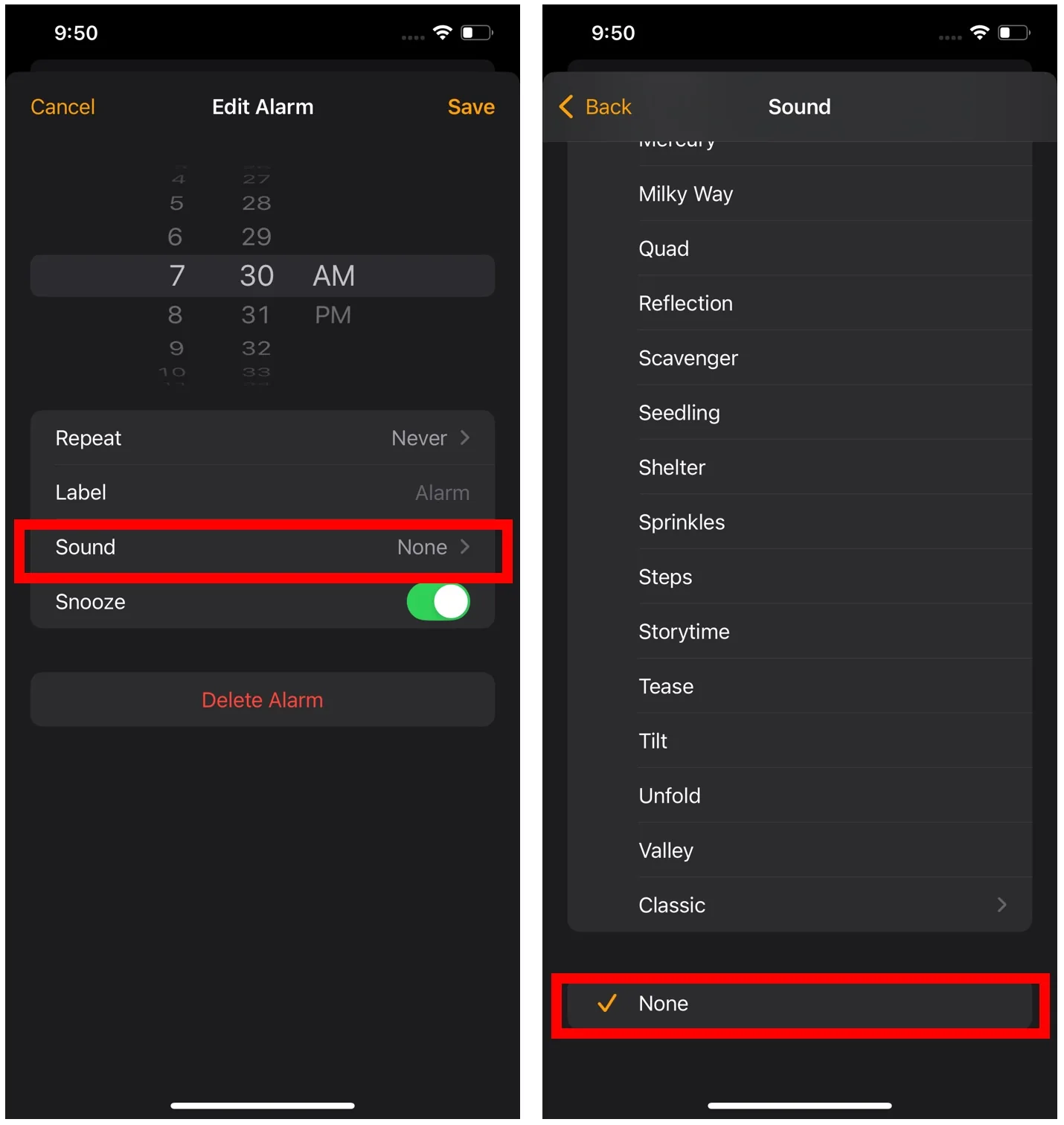
This catches more people than you'd expect. If your alarm sound is set to "None", the alarm triggers on schedule — but silently. Your screen lights up. No audio plays. You sleep through it.
Pro tip: If you're a heavy sleeper, built-in iPhone tones may not be enough. Consider an app with sounds specifically built to wake heavy sleepers.
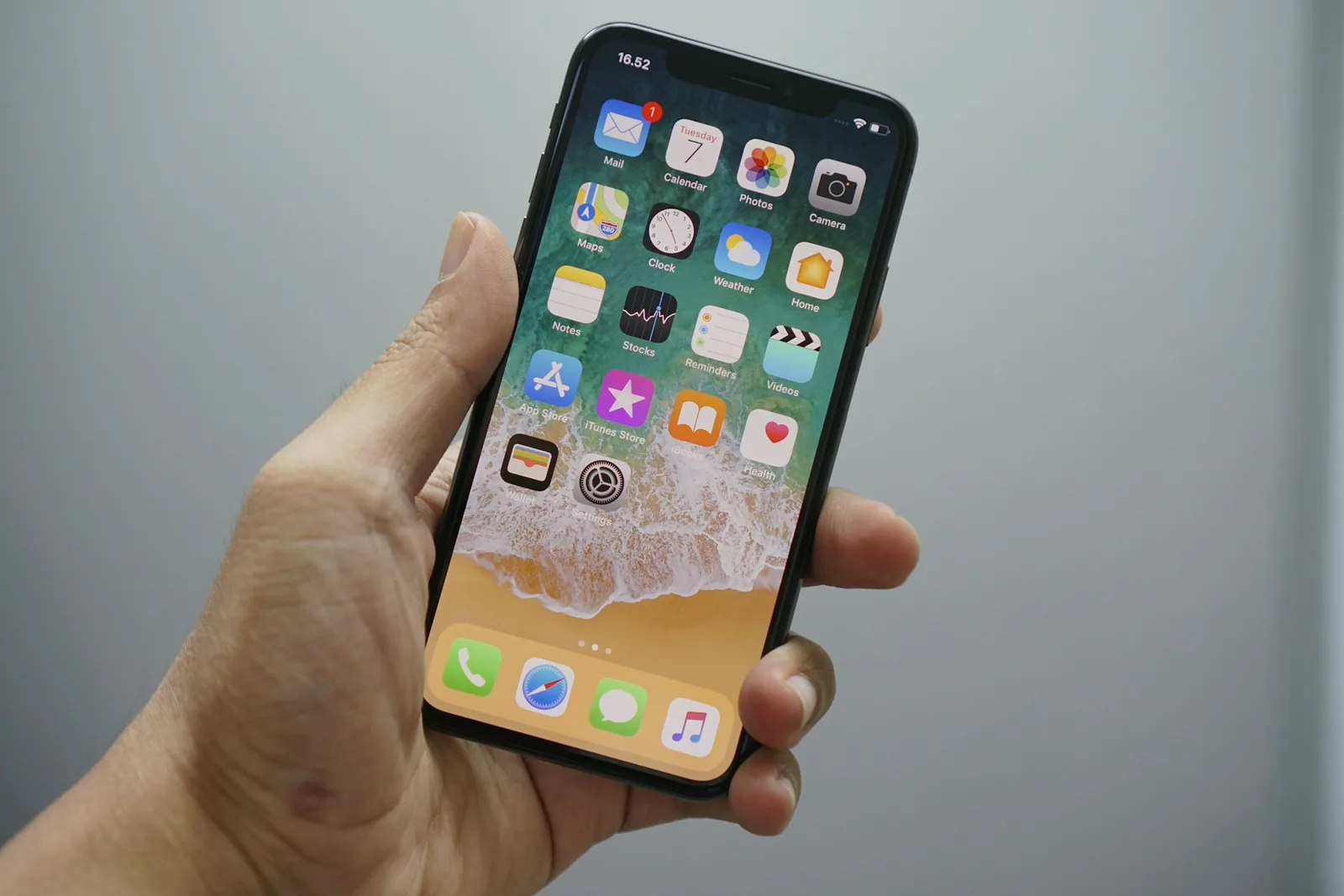
Apple's Focus Mode system — Do Not Disturb, Sleep Mode, and Silent Mode — is built to suppress notifications. Alarms are supposed to be exempt. In practice, the interaction between Focus schedules and the Clock app creates real problems.
Do Not Disturb won't block alarms directly. But if you've set a DND schedule that overlaps with your alarm time, other behaviors (like screen dimming and reduced haptics) can make it harder to notice a quiet alarm.
Sleep Mode is the bigger culprit. When you configure a Sleep Schedule through the Health app, iOS creates its own "Wake Up" alarm with a gentler tone. This can override or conflict with alarms you've set manually in the Clock app.
Silent Mode (the physical switch) follows the same rules as DND for alarms — they should ring regardless. But combined with a low volume slider, the result is near-silence.
Pro tip: The Health app's "Wake Up" alarm uses a gentler sound that can't be fully customized. For a reliable, loud alarm, always set it directly in the Clock app. Or better yet, use a dedicated alarm app that bypasses Focus Mode entirely.

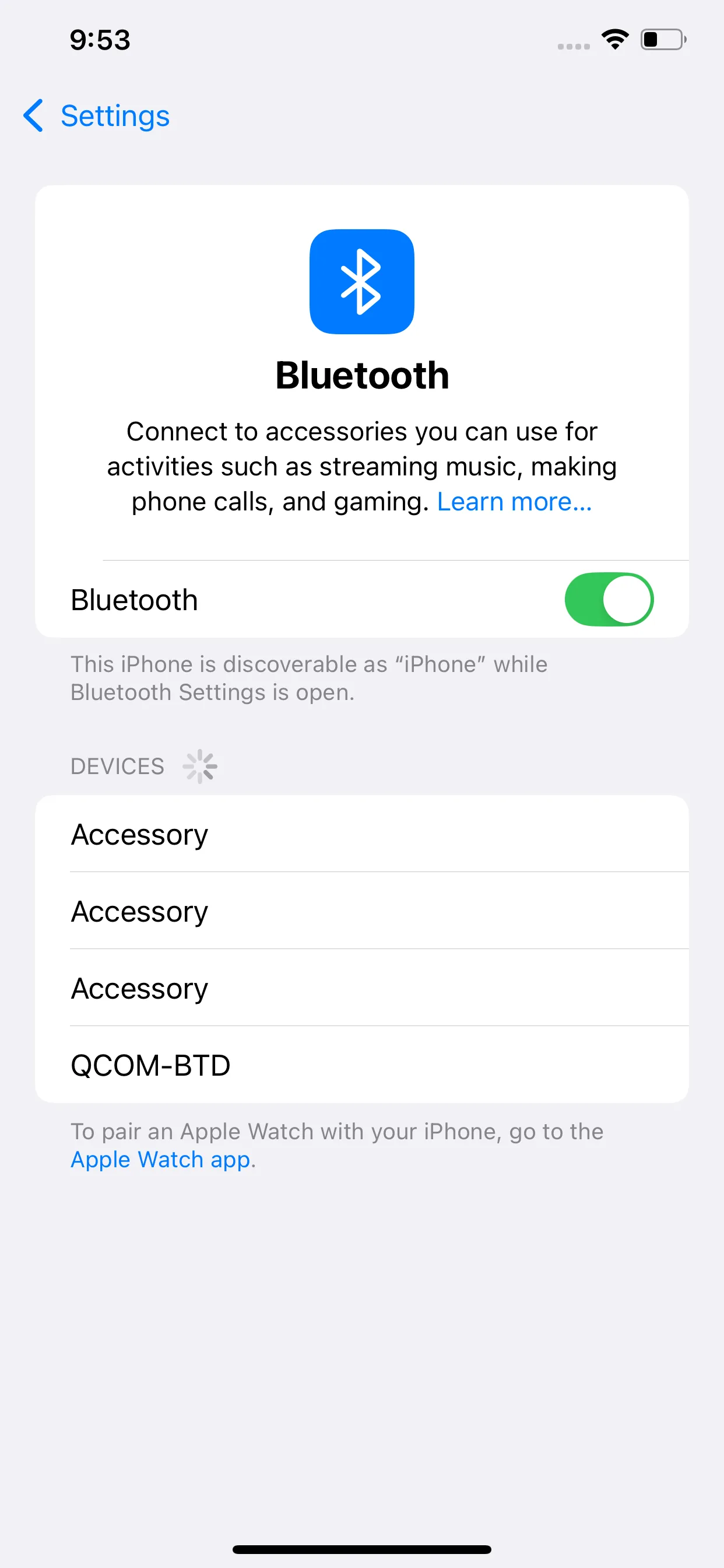
If your iPhone is paired with AirPods, Bluetooth headphones, or a wireless speaker, your alarm audio may route to that device instead of the built-in speaker.
Left your AirPods in their case? Speaker in the living room? The alarm is technically going off — just somewhere you can't hear it.
Pro tip: Some users report that even after disconnecting Bluetooth, the iPhone stays in headphone mode until restarted. If your test alarm is silent, a quick restart usually clears it.
Apple's alarm system has shipped with confirmed bugs across multiple iOS versions:
If you're running an older iOS version, updating alone might resolve the issue.
Pro tip: Even without a pending update, a simple restart clears temporary glitches that block alarms. Restarting once a week is a good habit.
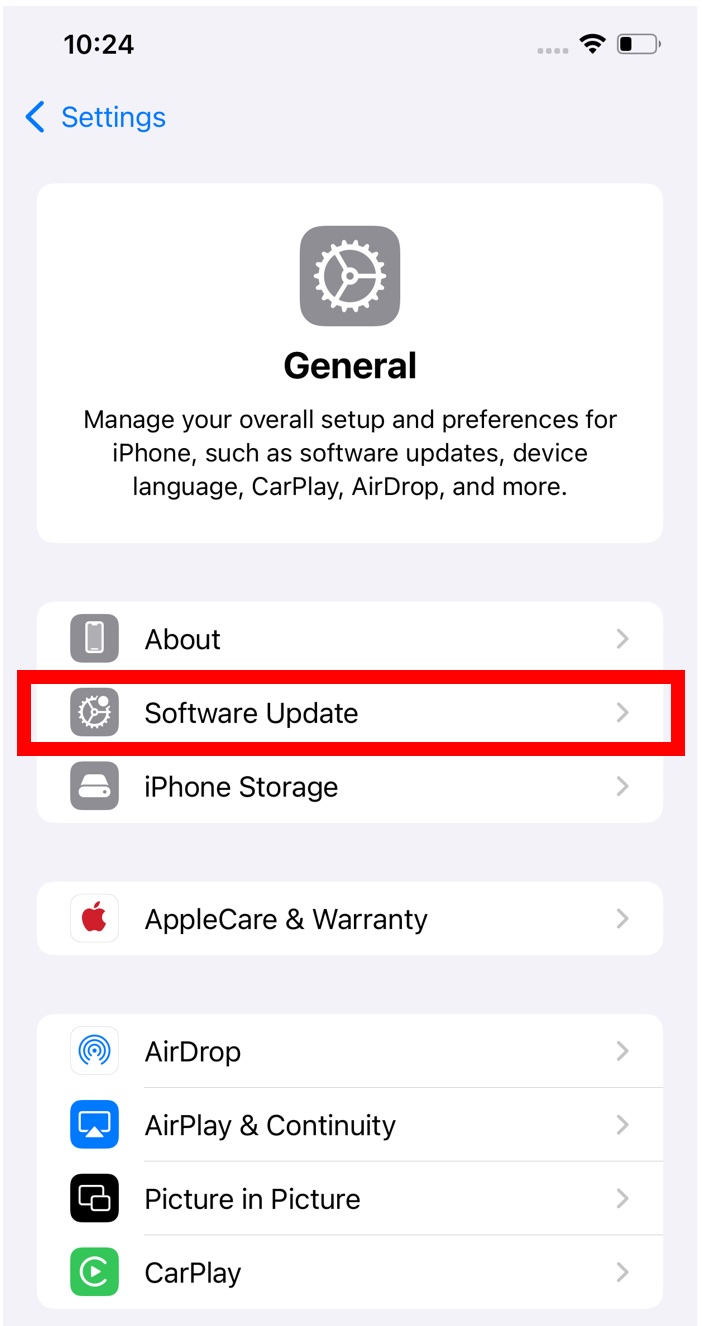
If all six fixes above didn't solve it, a few more options remain:
Or consider switching to a dedicated alarm app that doesn't rely on iOS's built-in alarm framework. The default Clock app has failed consistently enough that many people — especially heavy sleepers or anyone who can't afford to oversleep — use a third-party alarm as their primary.
Alarmy is a dedicated alarm app used by over 100 million people worldwide. It exists for one reason: making sure you actually get out of bed.
It runs its own alarm engine, independent of the iOS Clock app. That means the same software bugs that cause silent alarms or missed triggers on the default app don't apply here.
Instead of a snooze button, Alarmy uses wake-up missions — solving a math problem, taking a photo of a specific spot, or shaking your phone. You can't dismiss the alarm without completing the task, which pulls your brain out of that half-asleep state where "just five more minutes" turns into an hour.
For anyone who has lost trust in the default iPhone alarm, it's worth trying as either a backup or a full replacement.
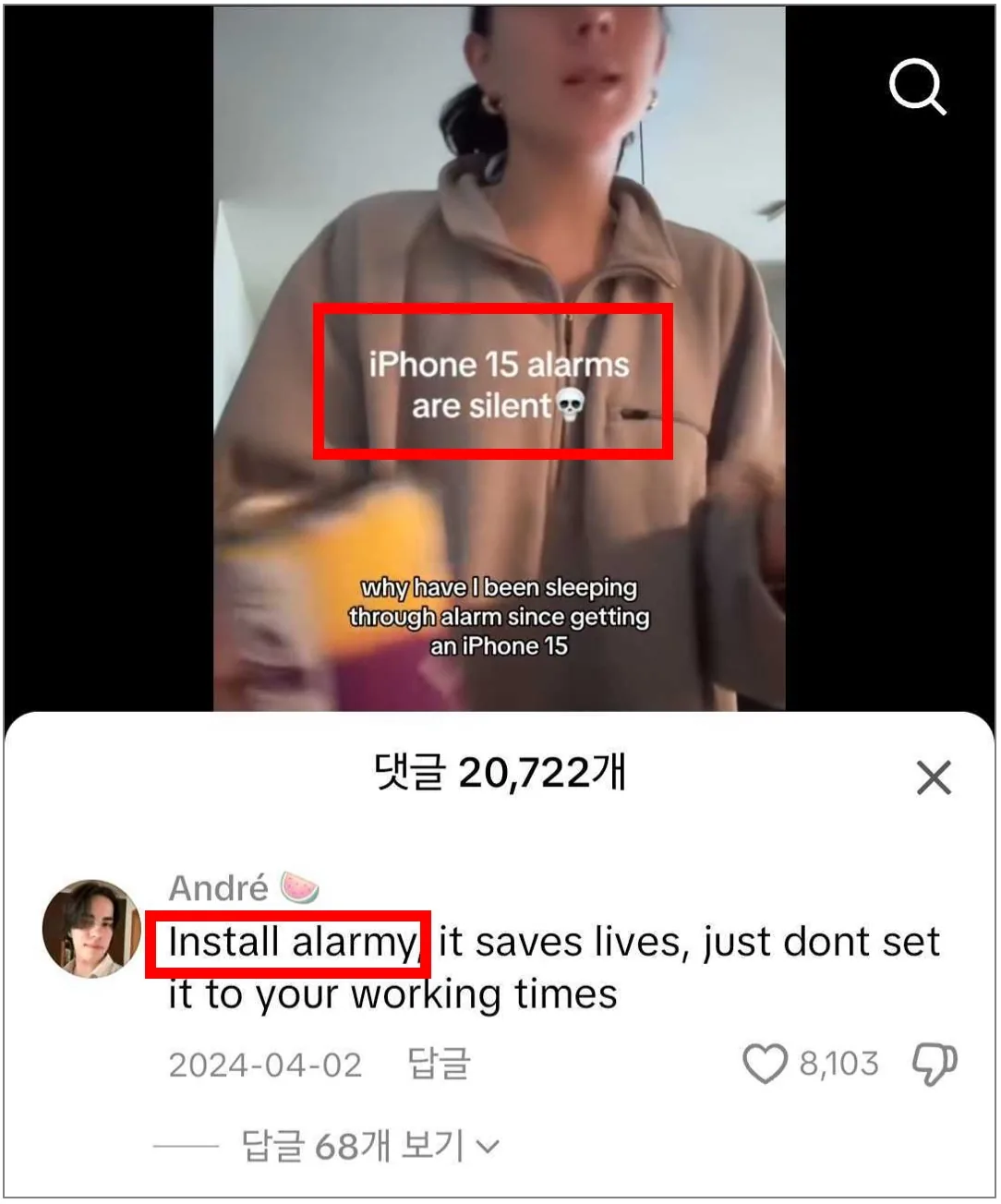
Two likely causes. First, check whether Attention Aware Features is enabled — it auto-lowers alarm volume when Face ID detects you're looking at the screen. Second, your ringer volume might be near zero. Go to Settings → Sounds & Haptics and raise the Ringtone and Alert Volume slider. Also open the Clock app and confirm the alarm sound isn't set to "None."
Yes. iPhone alarms ring even with the silent switch on. However, the alarm uses the "Ringtone and Alert Volume" slider — not the media volume. If that slider is set low, the alarm will technically ring but may be too quiet to wake you.
No. Do Not Disturb silences calls and notifications, not alarms. That said, Sleep Mode (a specific Focus Mode) can swap your alarm tone for a gentler wake-up sound. For full control, set alarms directly in the Clock app instead of through the Health app's Sleep Schedule.
Apple's alarm system has had confirmed bugs in iOS 17, iOS 18, and around Daylight Saving transitions. After updating, restart your iPhone and test a new alarm. If the issue persists, delete the alarm and create a fresh one. Apple typically patches these bugs within weeks, but a third-party alarm app like Alarmy avoids the issue entirely.
The built-in alarm is capped by the Ringtone and Alert Volume slider. Max it out and turn off "Change with Buttons" so it doesn't get accidentally lowered. Also disable Attention Aware Features, which can reduce alarm volume automatically. If that's still not loud enough, an alarm app like Alarmy offers louder sounds and can override system volume limits.
Yes, but with a catch. If you've set a Sleep Schedule through the Health app, iOS creates its own "Wake Up" alarm that uses a softer tone. This may replace or conflict with alarms you've set manually. To avoid surprises, set your alarm in the Clock app directly and consider disabling the Health app's Sleep Schedule.
Yes. The silent switch affects calls, notifications, and media — not alarms. Your alarm will fire regardless of silent mode. The volume, though, depends on the Ringtone and Alert Volume slider in Settings → Sounds & Haptics. Keep that slider above 50% to ensure you actually hear it.