.svg)

Get started Alarmy
by scanning the QR code
by scanning the QR code

%201.svg)
You set the alarm. You even double-checked the time before bed. Then you wake up an hour late, phone right there on the nightstand, alarm long since gone silent. If you've been there, you already know the sinking feeling.
Here's the reassuring part: a quiet iPhone alarm is almost never a broken phone. Nine times out of ten, it's a handful of settings doing exactly what they were told to do.
This guide walks through what actually controls your alarm volume, how to fix it step by step, and what to do if you've maxed everything out and still sleep through it.
Most quiet-alarm problems trace back to one of these five culprits. Find yours below.
This is the one almost everyone misses. The volume you change while playing music or a video is the media volume. Your alarm runs off a completely separate setting: the Ringtone & Alerts slider. You can blast a song at full volume and still have a near-silent alarm, because the two are unrelated.
If "Change with Buttons" is turned on, the side volume buttons also control your ringer and alarm level. So a stray press in your pocket, or turning a video down before bed, can quietly drag your alarm volume down with it.
Each alarm in the Clock app has its own sound. If that sound got switched to None, to vibration only, or to a soft tone, no amount of system volume will save you. The alarm is doing what it was set to do.
Left your AirPods connected, or paired to a speaker across the room? Audio can route there instead of your phone's speaker. The alarm fires, but it's playing somewhere you can't hear it.
Headphone safety features like Reduce Loud Sounds, plus certain Focus or Sleep modes, can dampen or reshape how sounds come through. They rarely silence an alarm outright, but they're worth ruling out.
Work through these in order. Most people are fixed by Step 2.
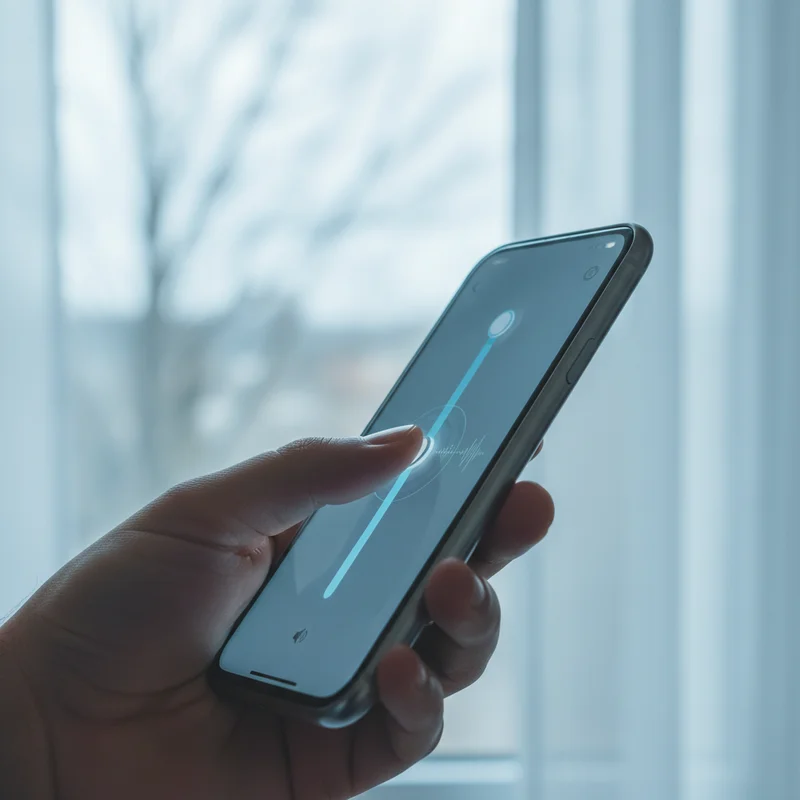
Open Settings > Sounds & Haptics. Drag the Ringtone & Alerts slider all the way up. Right below it, turn off "Change with Buttons" so the side buttons can no longer lower your alarm. That single toggle fixes a surprising number of cases.

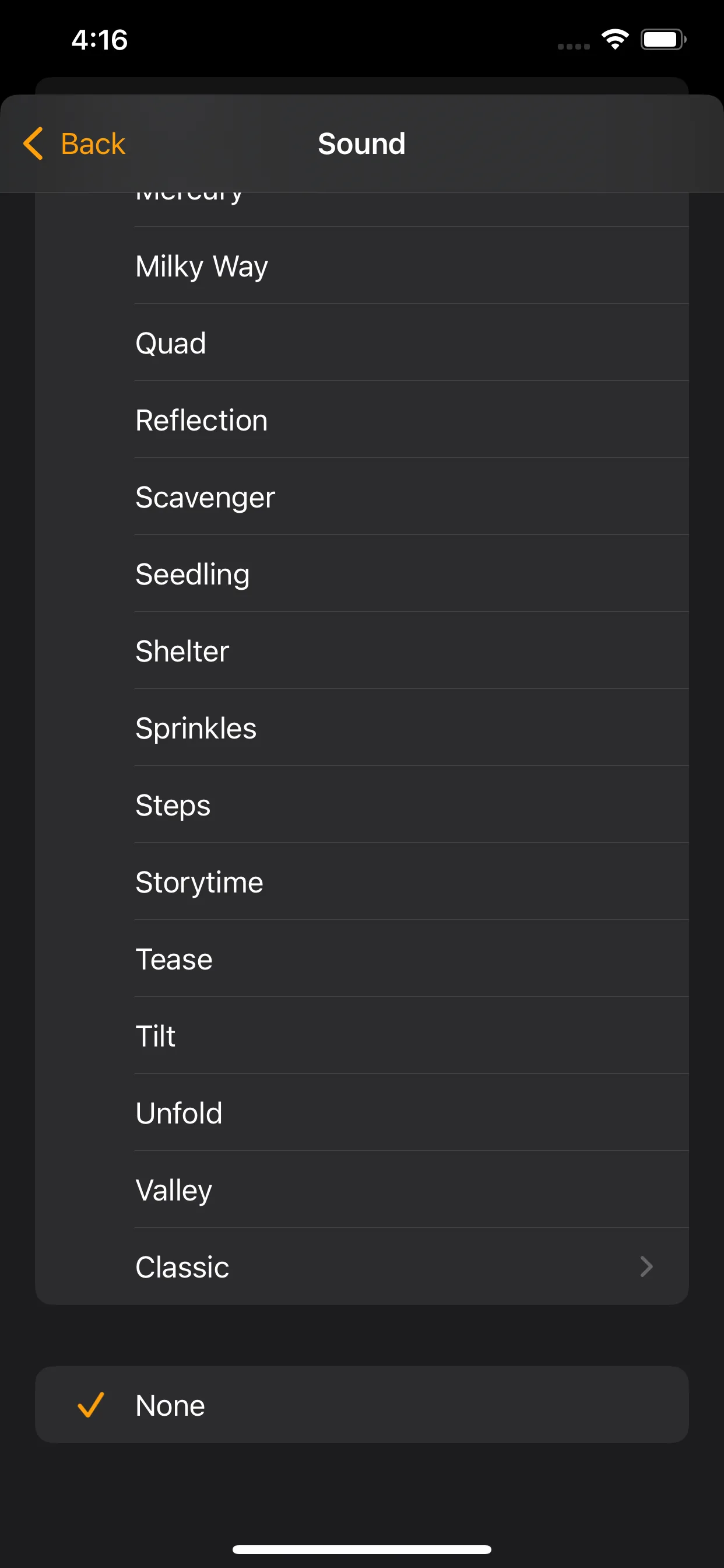
Open the Clock app, tap Edit, then tap your alarm. Open Sound and pick a real tone, not None or vibration only. While you're there, set a sound you genuinely react to rather than a gentle chime.
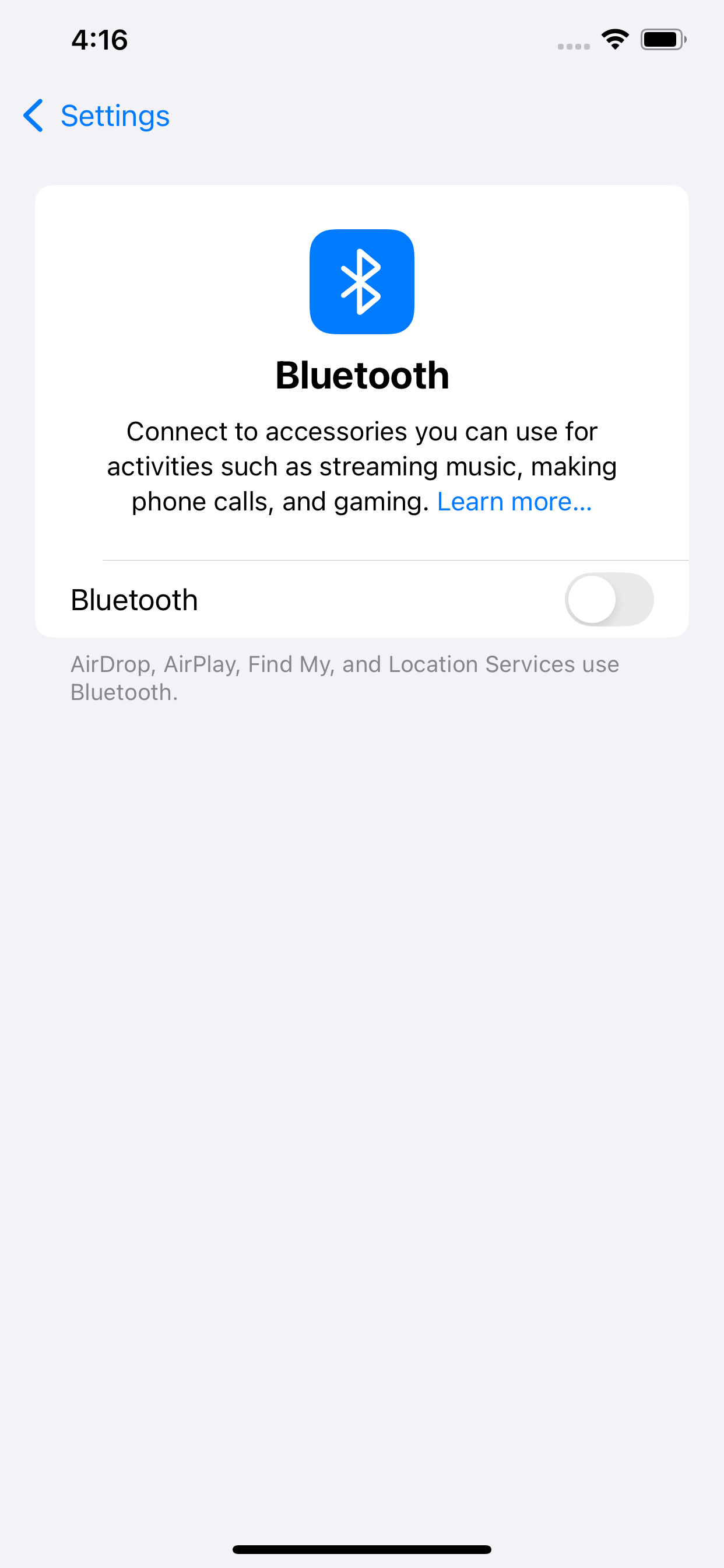
Swipe into Control Center and turn Bluetooth off, or unpair nearby headphones and speakers. Then set a test alarm for one minute ahead and listen. This confirms the sound is coming from the phone itself.
A simple restart clears small audio glitches. After it boots, check Settings > General > Software Update and install anything pending. One note: menu names and paths reflect current iOS and can vary slightly by version, so look for the closest match if yours differs.

If your alarm isn't just quiet but doesn't go off at all, the fixes are a little different — walk through what to check when your iPhone alarm doesn't go off.
Say you've done all of it. Slider maxed, real tone picked, Bluetooth off. And you still slept through it. That's not a settings failure, and it's not about trying harder.
The built-in alarm has real ceilings. iOS caps how loud the alarm can get, and it auto-stops after roughly 15 minutes. Worst of all, dismissing it takes a single half-asleep tap. For deep sleepers, that tap happens before the conscious brain ever switches on. If this sounds painfully familiar, there's a deeper reason behind it, and it's covered in why you can't wake up to your alarm. The short version: heavy sleepers need an action to wake, not just more decibels.
This is where a mission-based alarm changes the math. Instead of a tap-to-dismiss button, Alarmy makes you complete a task first: snap a photo of a specific spot, shake the phone a set number of times, or solve a few math problems. By the time you've done it, you're actually awake, not running on autopilot.
It also sidesteps the volume ceiling. The alarm escalates on its own and runs independently of your media and ringtone sliders, so a capped system volume isn't the hard limit anymore. If you want the full picture of how this differs from the stock approach, see iPhone and Android alarms versus a mission alarm.

Before bed tonight, run this quick check:
If you've ticked all four and mornings are still a battle, the fix isn't louder, it's an alarm you can't dismiss in your sleep.

You're likely looking at the media volume, not the Ringtone & Alerts slider. Open Settings > Sounds & Haptics and raise that slider specifically. Also turn off Change with Buttons so the side buttons can't lower it.
No. Alarms set in the Clock app still sound during Do Not Disturb and most Focus modes. If yours is silent, the cause is almost always the alarm's own sound setting or the Ringtone & Alerts volume.
The alarm's Sound is probably set to vibration only or to None. Open the Clock app, edit that alarm, tap Sound, and choose an actual tone. The vibration setting lives in the same menu.
It can if they're connected when the alarm fires. Disconnect Bluetooth headphones and speakers before bed, then run a quick test alarm to confirm the sound comes from the phone's speaker.